 HnicsCast
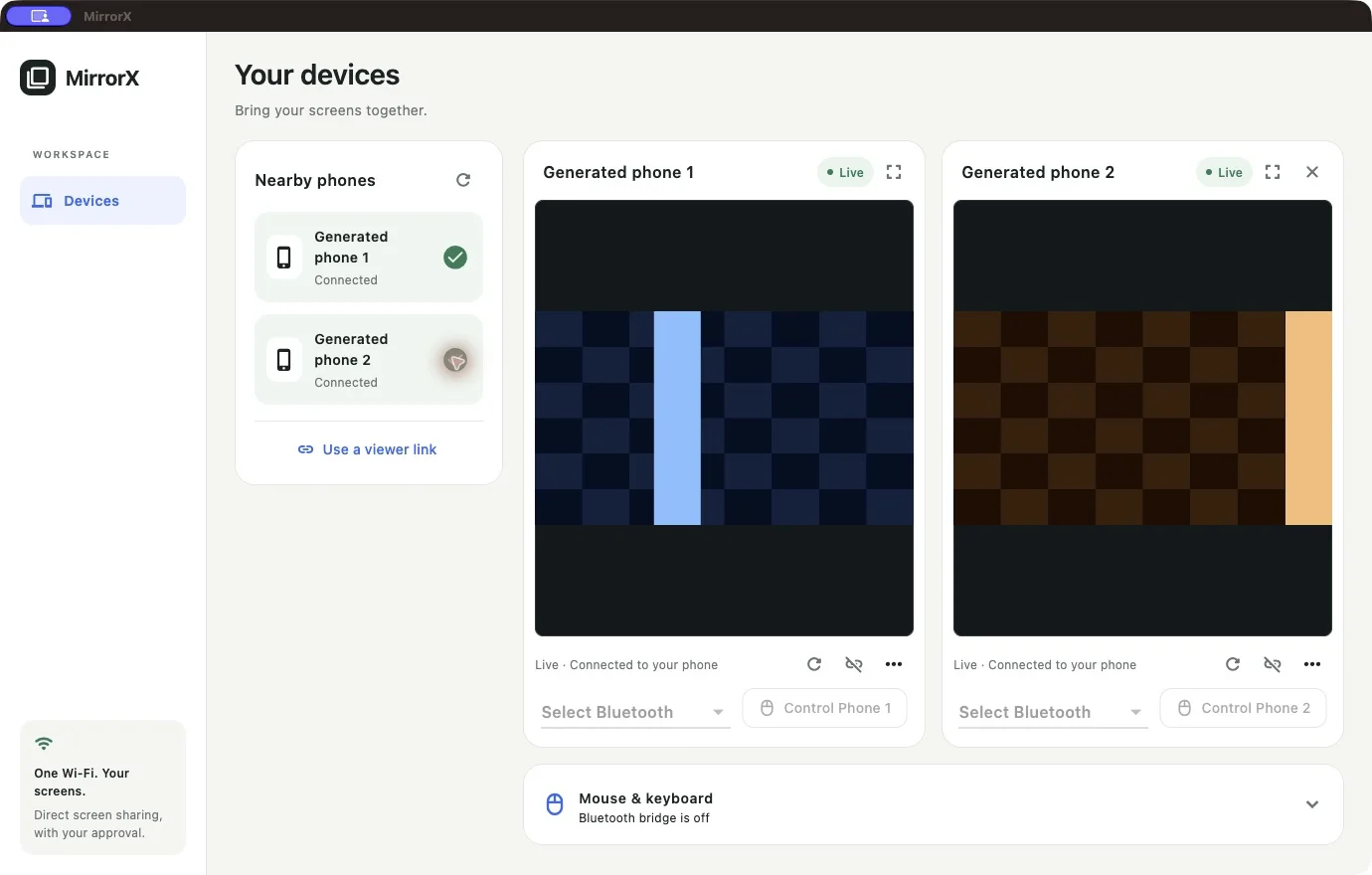
Mirror Two Phones Side by Side on PC, Mac & iPad
Compare iPhone and Android side by side, monitor two filming angles at once, or keep a reference screen beside your main demonstration — in one local workspace.
Start with one device. Add another in seconds.
Connect your first iPhone, Android or iPad inside the native Windows, Mac or iPad HnicsCast app. Then select + Add device to open a second independent pane on the same canvas.
Each pane establishes its own local Wi-Fi stream, so you can mix an iPhone with an Android phone, two iPhones, or two Android phones without juggling separate browser tabs or third-party adapters.
Native workspace vs. single-device mirroring
| Capability | Built-in AirPlay / Phone Link | Browser viewer tab | HnicsCast Windows / Mac / iPad app |
|---|---|---|---|
| Simultaneous screens | 1 device at a time | 1 sender per browser window | 2 independent senders side by side |
| Mix iPhone & Android together | No | Requires separate manual windows | Yes — native dual-pane layout |
| Per-device audio mute | Single output only | Manual per-tab mute | Dedicated speaker toggle per pane |
| Floating monitor windows | No | Separate browser windows | Pop-out window support on Mac |
Four practical two-screen workflows
- iOS & Android app reviews: Developers, designers and QA reviewers keep an iPhone and an Android phone side by side to verify layouts, typography and state transitions live.
- Two-angle phone filming: Creators frame a wide presenter camera in Pane 1 and an overhead tabletop phone in Pane 2 without leaving their seat. See our phone filming setup guide.
- Teaching & student comparisons: Show two students' tablet diagrams or handwriting examples together on a classroom projector.
- Live reference + demo: Keep speaker notes or a reference step visible on a muted secondary device while demonstrating an audible app on your primary pane.
Mac pop-out windows and independent sound
On Mac, click the pop-out button on either pane to detach that phone into its own native window and drag it onto a second display — then click Return to app later without dropping the live video stream.
Remember that each sending device streams to one active viewer at a time, and both senders should stay on the same trusted Wi-Fi network as your receiving Windows PC, Mac or iPad.
Multi-device questions
Can I mix an iPhone and an Android phone in the same workspace?
Yes. Pane 1 and Pane 2 connect independently, so pairing an iPhone in one pane and an Android phone in the other works naturally on Windows, Mac and iPad.
Do both connected phones play sound at the same time?
You choose. Toggle each pane's speaker icon independently — keep one phone audible while muting the second, or listen to both when comparing audio apps.
How many devices can one phone mirror to at once?
Each sending phone accepts one viewer at a time. The two-device workspace combines two separate senders into one Windows, Mac or iPad receiver.